
How to cancel your Shopify account
Like with most things, sometimes we need a little change, whether it be an upgrade to something new-or, for personal reasons.
Sometimes it’s because you’ve grown to a point where certain services are no longer required.
As a Shopify account owner, two options are available – pause your store temporarily or close your store completely at any time.
Want to find out how to go about this?
This article will show you just how to cancel your Shopify account. Let's jump in.
1.What is Shopify?
Shopify is an E-commerce platform that has been around long enough to be one of the pioneers of online shopping platforms.
There are many reasons why you would search for this kind of help and I understand your frustration.
Some of the most common of these reasons will be discussed later.
Without wasting any time, let’s jump straight to this short guide that gives us the map on how to cancel Shopify.
2. A quick guide to cancel your Shopify subscription and close your store
2.1. Uninstall any apps on your Shopify dashboard
Starting from your Shopify admin dashboard, click on the Apps page.
Locate the app you'd like to uninstall, then click the Delete button
next to it.
Click Uninstall. You may leave us any feedback as to why you're
uninstalling the app as well.
2.2. Transfer your custom domains to another provider or, remove domains from your Shopify dashboard
Step 1: From the admin page click Online Store > Domains.
Step 2: If this is the first Domain that you're connecting to your Shopify store, click on connect existing Domain, then> transfer in your Domain
Step 3: Enter the Domain that you want to transfer to Shopify
Step 4: Click on next.
Step 5: select the verify domain
Login as the account holder.
Click on Close Store and select your reason.
Click Close a second time to confirm.
3. What to check on before you begin the Shutdown Process
3.1. Pay outstanding charges
You will have to make sure that you don’t have any outstanding bills, as you can’t close your store if you have any outstanding bills.
3.2. Cancel third-party apps and Tools
If you happen to not uninstall any apps that have recurring charges, you may end up being billed for them.
If you’re planning on closing your Shopify store while you have apps with monthly subscription charges, you will be charged for a full 30 days from the day that you install it.
Any Shopify application credits you accumulatecan only be used for application purchases.
Downgrading a paid subscription or closing your Shopify store means you will not get the money back for the unused subscription period.
Check that the apps you’ve installed manually are canceled with the third-party vendor.
You also need to cancel any billing agreements you have with the third-party vendor.
Uninstalling the app from your Shopify store won’t automatically cancel those agreements.
3.3. Shopify refund policy
Shopify does not issue refunds.
Be sure to start with a free trial to test out the service with no credit card.
Canceling during the trial period means you don’t need to worry about being charged.
3.4. Domain transfer policy
There are a few steps to take if you have a Custom Domain for your Shopify store.
If you have a third-party Domain connected, you have to remove the domain from your Shopify domain list and change DNS settings using your domain hosting platform.
If you have purchased a domain via Shopify or transferred your domain to Shopify, you have to transfer the management of the domain to another hosting platform.
4. How to cancel your Shopify account in 4 simple steps
4.1. Account settings
Log in to your Shopify account, in the admin panel, go to Settings > Account.
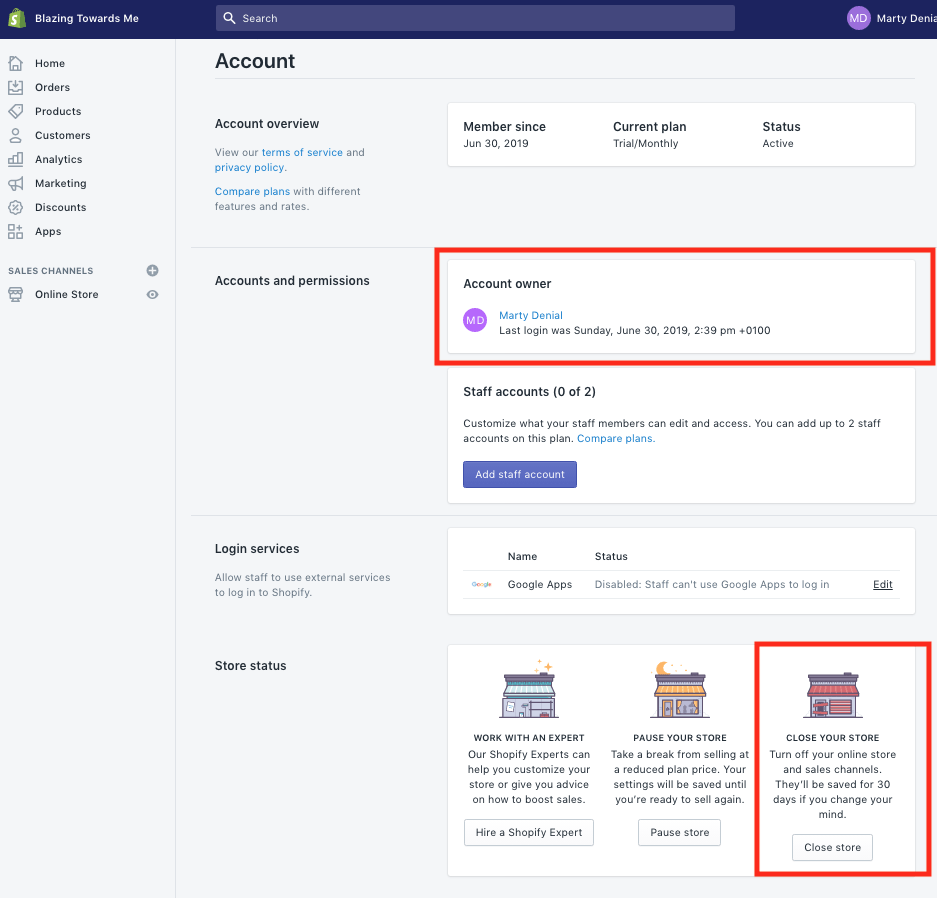
Shopify admin panel - Step 1
4.2. Store status section
Select store status and then select close store.

Shopify admin panel - Step 2
4.3. Select your reason
A pop-up will appear asking you to select the reason for cancellation.
Selected the most appropriate reason and then click on close store.
4.4. Confirmation
Once successful, you will be redirected to a screen that confirms that your store is closed.
If you try to log into your Shopify panel at this point, you will see a pop-up message that prompts you to choose a new plan should you wish to reactivate your store.
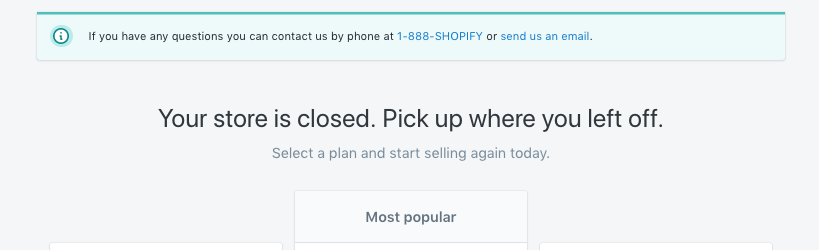
Shopify-confirmation pop-up
5. Conditions to cancel your Shopify account
You will not be reimbursed for any unused part of your plan.
Outstanding bills will make it impossible for you to close your store.
It’s very important to make sure that all your outstanding amounts are paid and up to date.
You will lose access to your admin panel as soon as you select the reason for closing the store and canceling your Shopify account.
Make sure you’ve removed any connected domains before you close your account since you will not be able to access the dashboard.
Uninstalling apps that you installed manually will ensure that you avoid charges.
It’s advisable that you set aside enough time to complete all the steps.
Shopify’s HTTP strict transfer security (HSTS) remains effective for 90 days after your store’s closure, which shouldn’t be an issue if your new platform is https-enabled.
If your new platform is not https-enabled, visitors to your new store will see a security message that your store is “not secure, not to be trusted, and your certificate is invalid”
6. Conclusion
There are endless possibilities for some of the reasons that will make you take such a drastic step to close your shop.
The ones listed here are some of the most common ones to give you an idea of the number of people who may need this kind of information.
Other posts about Shopify


© systeme.io. All rights reserved
© systeme.io. All rights reserved